Platform Interface Guide
Get up to speed on navigating the platform and utilizing the available tools. You will focus on the virtual session experience today; while in-person sessions are supported, the primary difference is that in-person sessions do not feature or require camera and audio controls.
The platform features different roles for Participants and Moderators. As a Moderator, you have access to additional crucial controls.
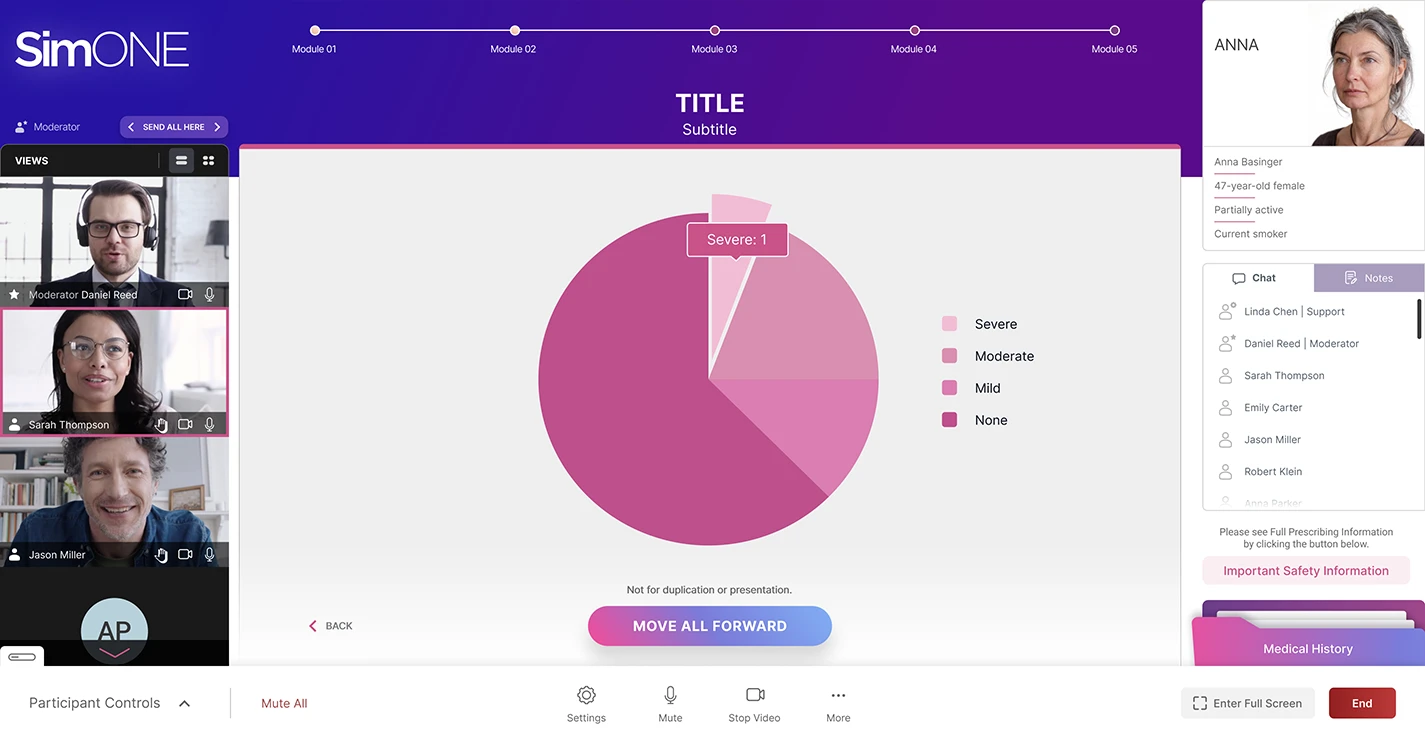
1 Layout
The main interface is designed to keep everyone oriented and focused on the clinical content.
2 Communication
Underneath the patient profile on the right side, you will find tools for user interaction.
3 Video & Audio
The left panel and bottom bar house the tools for managing meeting participation.
4 Navigation
As a moderator, you have specific controls to guide the flow of the case.
1 Layout
Timeline: Located at the very top of the screen, this indicates where you are in the case review and is visible to both you and the participants.
1 Layout
Patient Profile: In the top right corner, you will find the specific patient being discussed along with their key characteristics.
1 Layout
Render Area: The large white area in the center of the screen is where the primary case content is displayed.
2 Communication & Note-Taking
Chat Feature: Available strictly for virtual sessions, this allows communication among users. As a moderator, you will receive an alert whenever someone writes to you in the chat.
2 Communication & Note-Taking
Private Notes: The note-taking section is only visible to you individually, and your notes are not saved within the platform. As a moderator, you should encourage participants to copy and paste their notes elsewhere if they wish to retain them.
3 Video & Audio Controls
Participant Feeds: The left side of your screen displays the camera feeds of all participants during virtual sessions only.
3 Video & Audio Controls
Grid Settings: Visual signs on top of the camera grid, specifically an equal sign and four dots, allow you to change how you view the camera feeds.
3 Video & Audio Controls
Standard Controls: At the bottom of the screen, participants have standard virtual meeting controls for their camera, virtual background, audio, raising their hand, and selecting their preferred microphone and camera settings.
3 Video & Audio Controls
Moderator Permissions: As a moderator, you have additional controls at the bottom of the screen to mute individual users or mute all participants at the same time. You can also turn off participants' cameras, but you cannot turn them back on.
4 Navigation & Synchronization
Pacing the Group: Inside the main content area, you have Move All Forward and Back buttons to control the pace of the session and ensure all participants stay together.
4 Navigation & Synchronization
Independent Navigation: Located above the camera feed, you have arrows allowing you to move your own screen back and forth through the case content independently of the participants' view.
4 Navigation & Synchronization
Sync Feature: A button next to the independent navigation arrows allows you to instantly synchronize everyone's view back to your current screen.
5 Interactivity & Session Management
Driving Engagement: Lorem ipsum dolor sit amet, consectetur adipiscing elit. Sed do eiusmod tempor incididunt ut labore et dolore magna aliqua.
5 Interactivity & Session Management
The Dashboard: You will receive individualized email credentials to log into the Dashboard. From this dashboard, you can request a session, enter relevant details like date and time, and receive the specific links for yourself and the participants.
5 Interactivity & Session Management
Testing Environments: You can request links to access a testing environment. This allows you to experiment with the controls and become comfortable with the interface before hosting live sessions.