Platform Controls
 Face-to-Face
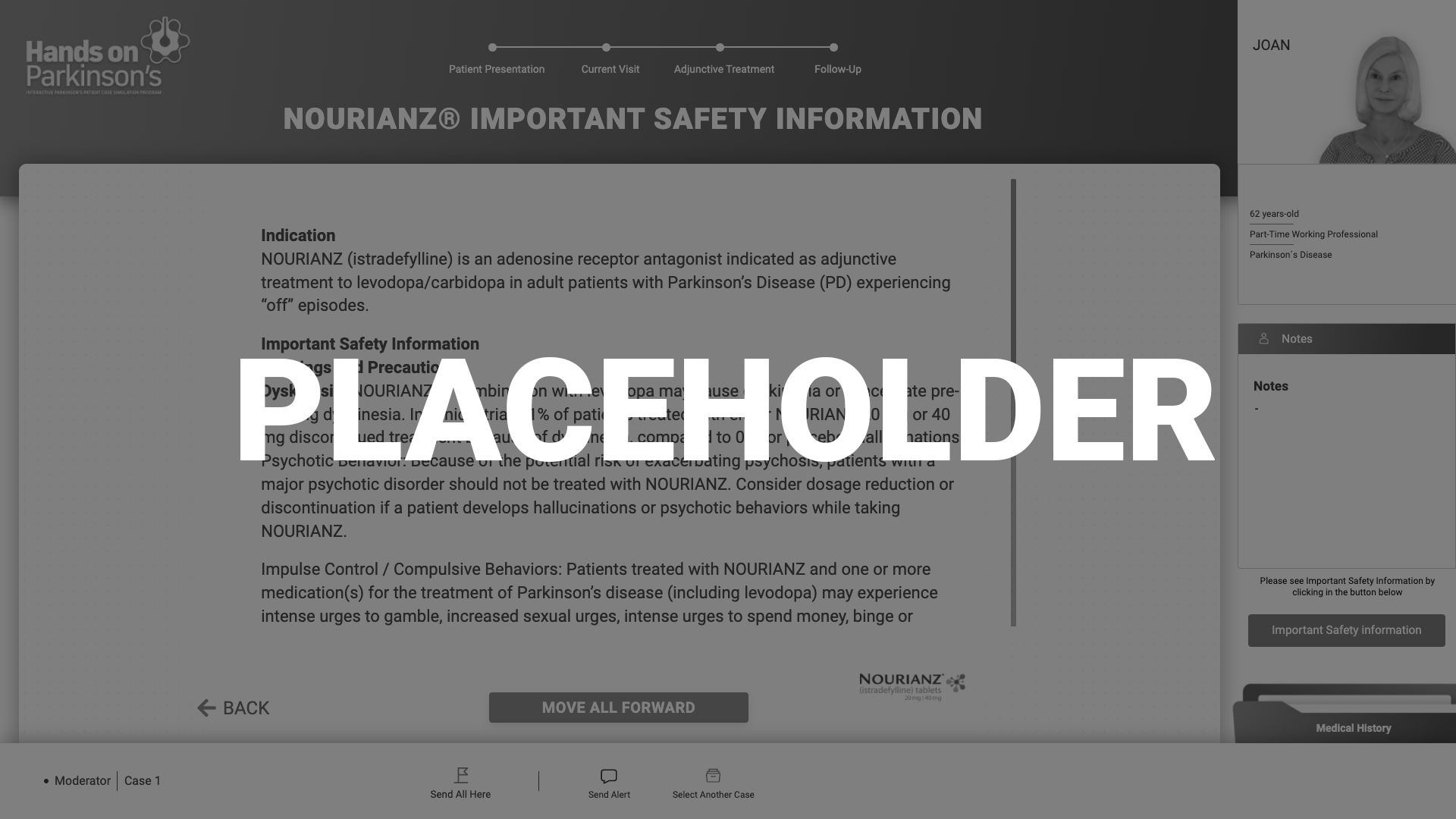
BOTTOM BAR:
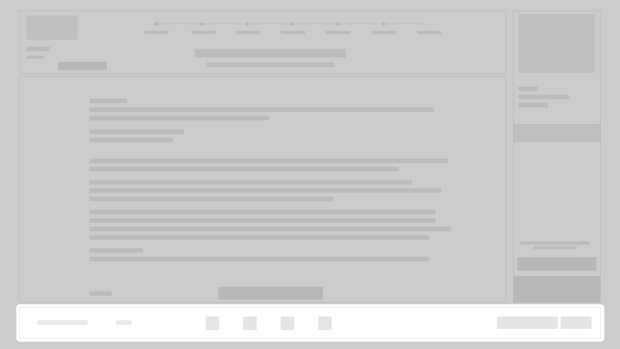
- Select Another CaseAvailable only for moderators
- Send All HereAvailable only for moderators
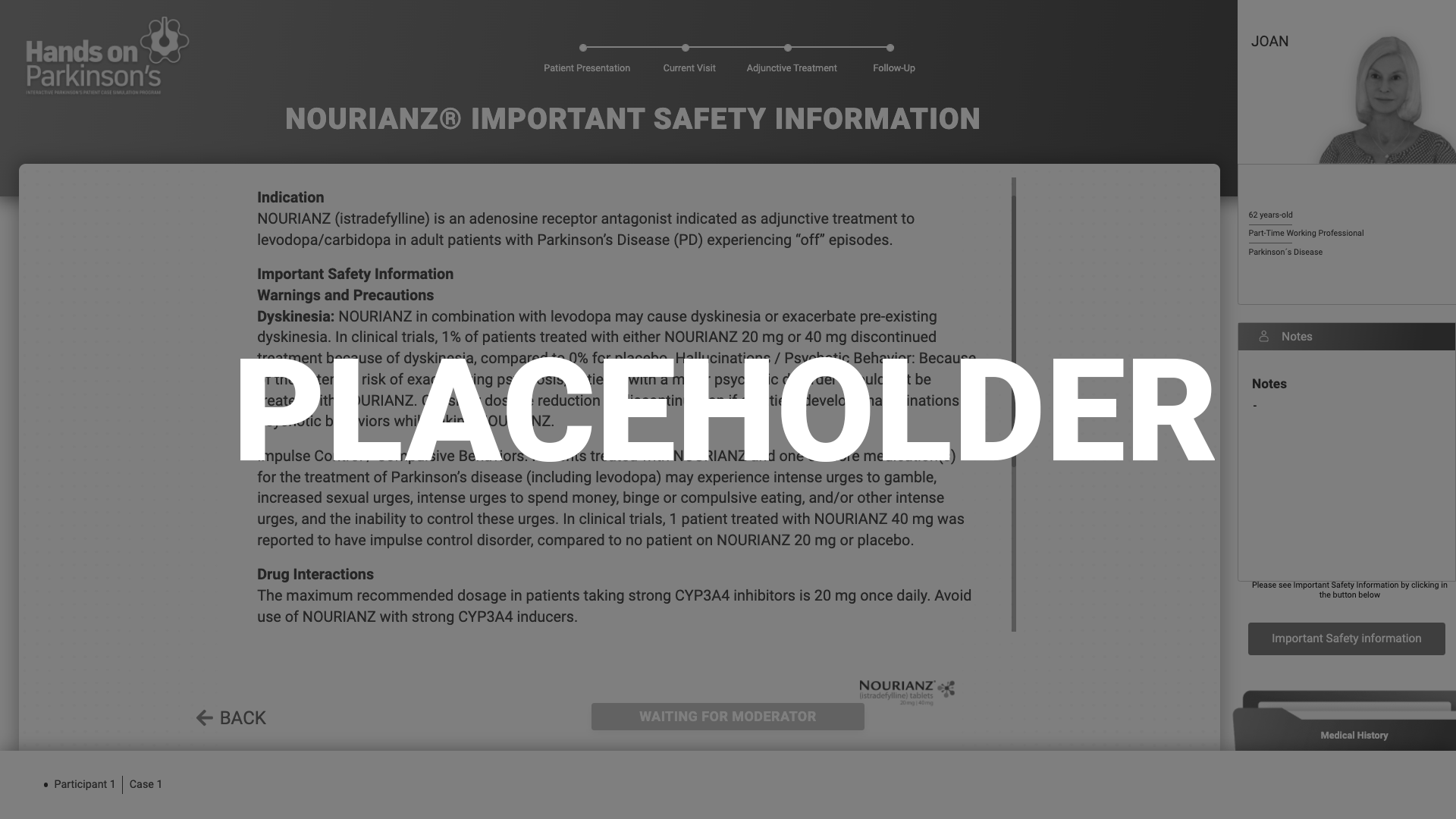
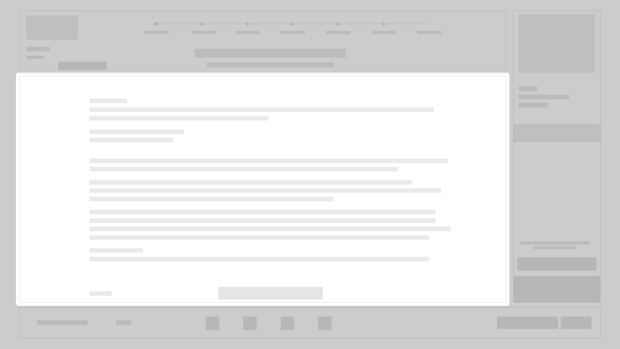
RENDER AREA BUTTONS:
-
Move All ForwardAvailable only for moderators
-
BackAvailable only for moderators
- Go to Waiting RoomAvailable only for moderators
- ShareAvailable only for Participants
The moderator will use this button to move all users forward.
The moderator will click here to move all users back.
Tip: The moderator can also use the keyboard arrows to move users back and forward on the platform.
This button will move just the moderator to the waiting room screen to wait for the participants to submit their answers.
This button will allow participants to share their desired options during the interaction screens with all users.
TOP SIDEBAR:
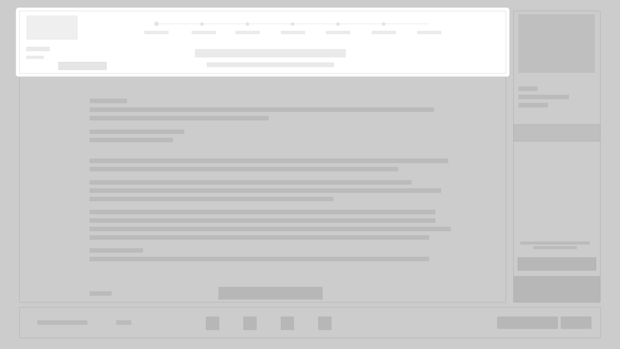
- Progress Bar
Allows users to visualize the progression of the case under review. The moderator can interact with the progress bar and move to a specific point on it. To move all users to that point, the moderator will need to use the “Send all here” button.
Participants cannot interact with the progress bar and will only use it as a reference.
RIGHT SIDEBAR:
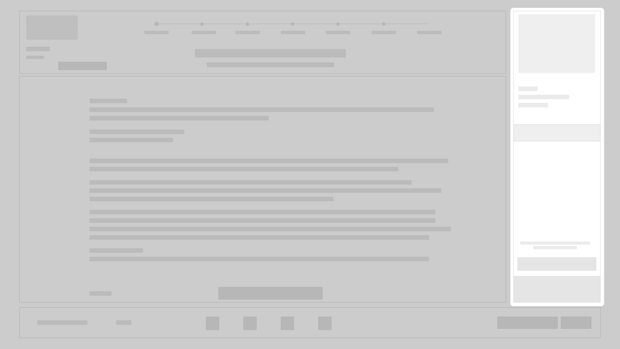
- Case Patient Information
- Notes Module
- Important Safety Information
- Medical History Folder
Essential characteristics of the case under review will always be available for viewing during the presentation.
The notes section is for personal use only. Notes will not be shared with the rest of the users nor stored on servers.
Users can refer to Important Safety Information + Patient Information simply by clicking the button at any point during the case review.
Available for users if they need to review previous information. It will contain any previous slides.
 Virtual — Platform Controls
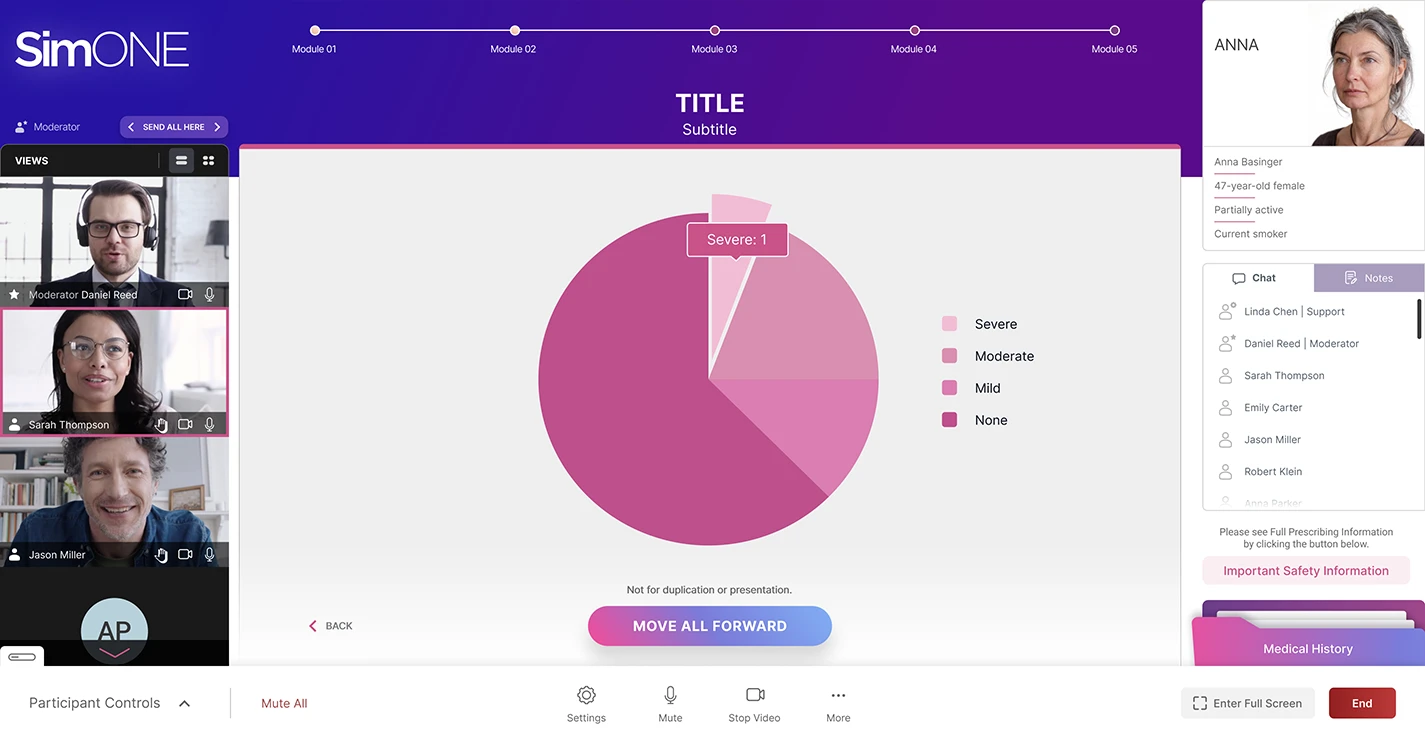
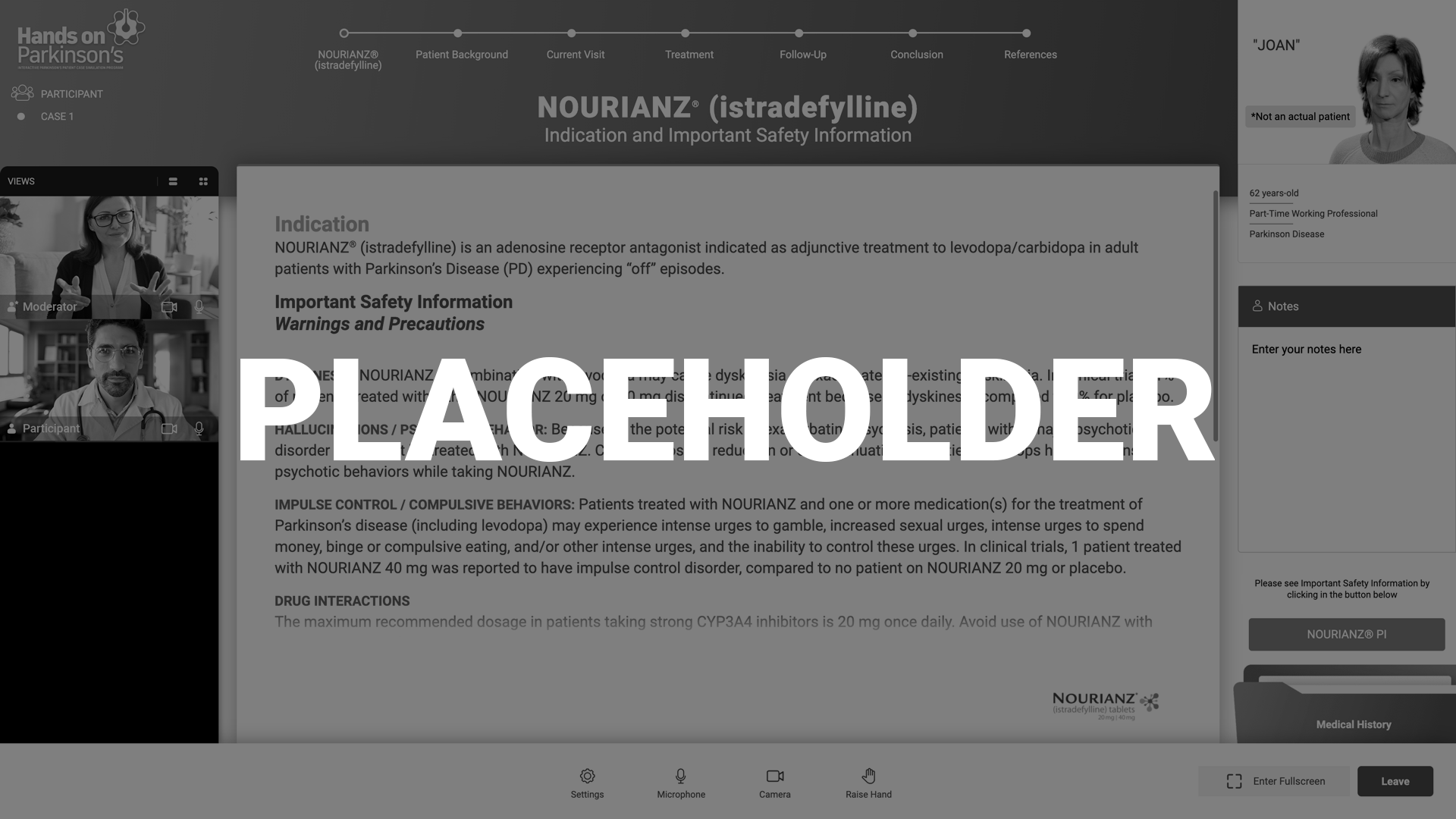
RENDER AREA BUTTONS:
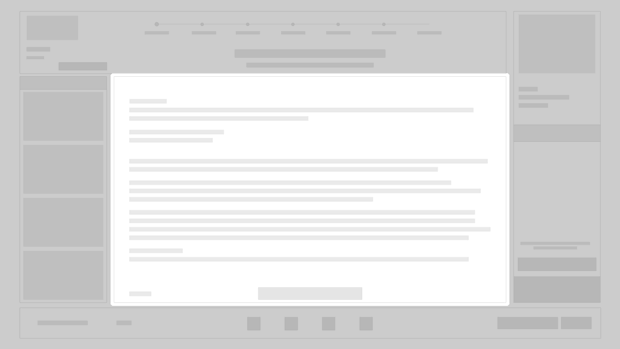
- Move All Forward Available only for moderators
- Back Available only for moderators
- Go to Waiting Room Available only for moderators
- Share Available only for Participants
The moderator will use this button to move all users forward.
The moderator will click here to move all users back.
This button will move just the moderator to the waiting room screen to wait for the participants to submit their answers.
This button will allow participants to share their desired options during the interaction screens with all users.
BOTTOM BAR:
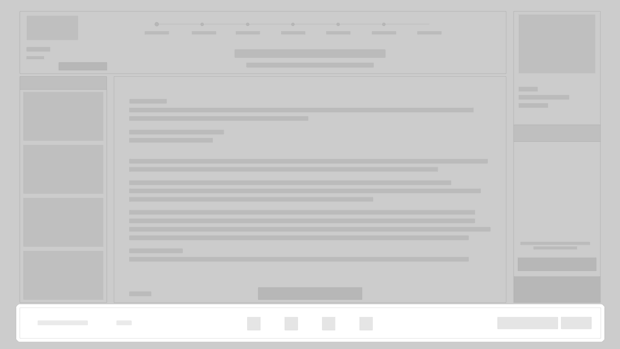
- Participants' Controls Available only for moderators
The moderator will be able to turn off cameras and microphones, and lower participants' hands individually or all at once.
- “More” Button Available only for moderators
- Select Another Case
- Share Screen
This allows the moderator to select another case (if available on the platform). By clicking on this option, the moderator will be directed to the cases library, and the participants will no longer see them in the session.
Once the new case is selected, all users will move to the new session.
Moderator can share his/her entire screen or a specific screen during a session. While presenting, the moderator can share data such as papers, PowerPoints, spreadsheets, and more.
- Mute All Button Available only for moderators
- User Settings
- Profile: user information and ability to edit name
- Camera and Audio: the ability to change device settings during the session
- Raise/Lower Hand
 When someone raises their hand, all users are notified.
 - Individual Camera and Microphone Controls
 /
/ Turns microphone and camera on/off.
 - End Buttons
- End session (Only visible for moderators. Ends session for everyone.)
- Leave session (Visible for all users. Ends individual sessions.)
This button mutes all users at once.
LEFT SIDEBAR:
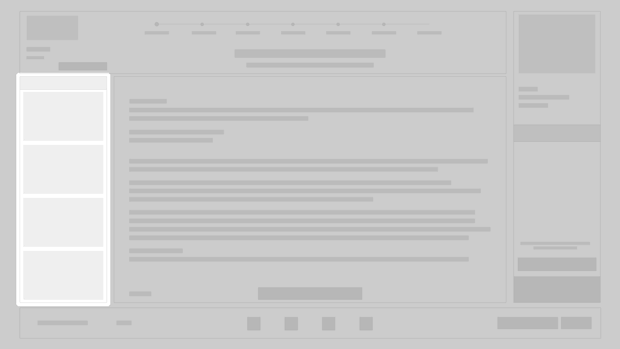
- Video Grid
- Notifications
Changes view mode from thumbnail to grid.
A pop-up message appears over the left bottom area when a user sends a message or raises their hand.
Note: On the left sidebar, the users can also turn on/off their microphones and cameras, and raise their hands, using the buttons under their cameras. The moderator can also use these buttons to turn off participants' microphones and cameras and lower their hands.
Important: Moderators cannot turn on microphones or cameras to honor participants' privacy, but they can send an alert to users to unmute themselves.
TOP SIDEBAR:
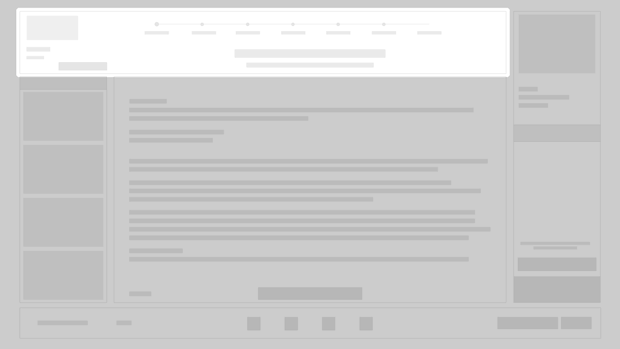
- Preview Arrows & Send All HereAvailable only for moderators
- Arrows: In case the moderator needs to go back without moving all participants, the previous and next arrows allow only the moderator to move forward and backward.When the moderator uses these arrows, an indicator will be displayed over the progress bar to showcase the moderator's new position.
- Send All Here: This allows the moderator to move all the participants to the screen that the moderator is currently viewing.
- Progress Bar
Allows users to visualize the progression of the case under review. The moderator can interact with the progress bar and move to a specific point on it. To move all users to that point, the moderator will need to use the “Send all here” button.
Participants cannot interact with the progress bar and will only use it as a reference.
RIGHT SIDEBAR:
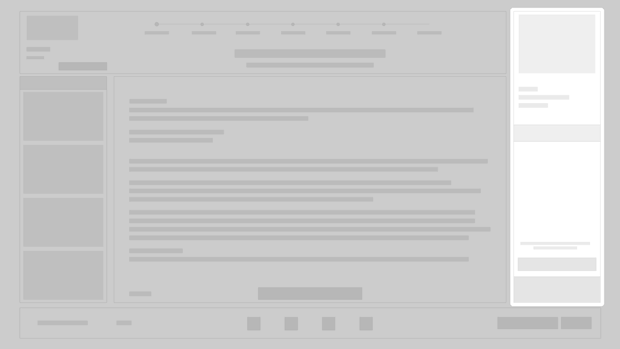
- Case Patient Information
- Chat & Notes Modules
- Important Safety Information
- Medical History Folder
Essential characteristics of the case under review will always be available for viewing during the presentation.
The notes section is for personal use only. Notes will not be shared with the rest of the users nor stored on servers.
Users can refer to Important Safety Information + Patient Information simply by clicking the button at any point during the case review.
Available for users if they need to review previous information. It will contain any previous slides.